The start screen and every Yibu control, one at a time. Desktop examples are from a OnePlus 8T; external-screen controls are from a vivo X300. Both languages use English-interface screenshots.
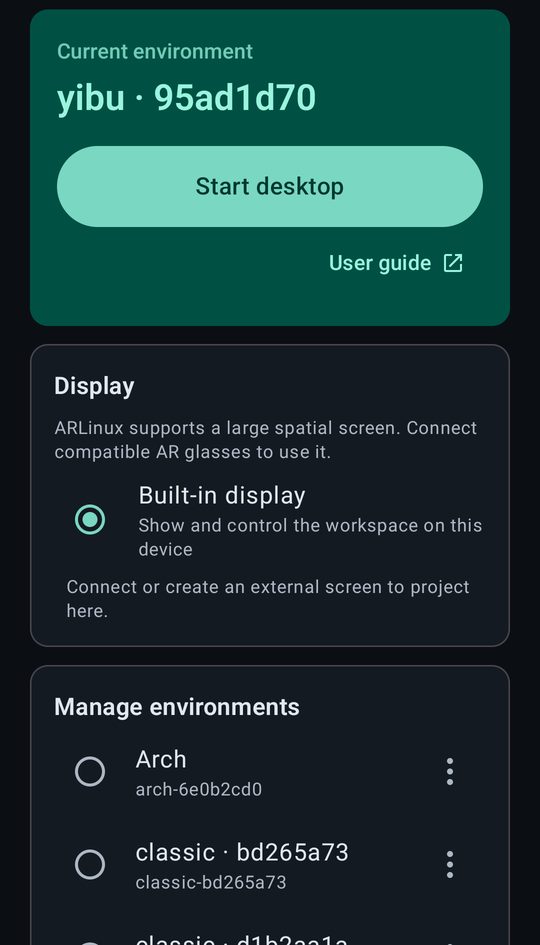
Current environment: the workspace that will start. Yibu and Classic are created from the APK, offline.
Start desktop: opens the workspace. The first start unpacks it on the phone; later starts are quick. The first time, a short guide points out the keyboard and the controls.
Guide: opens our video channel with walkthroughs.
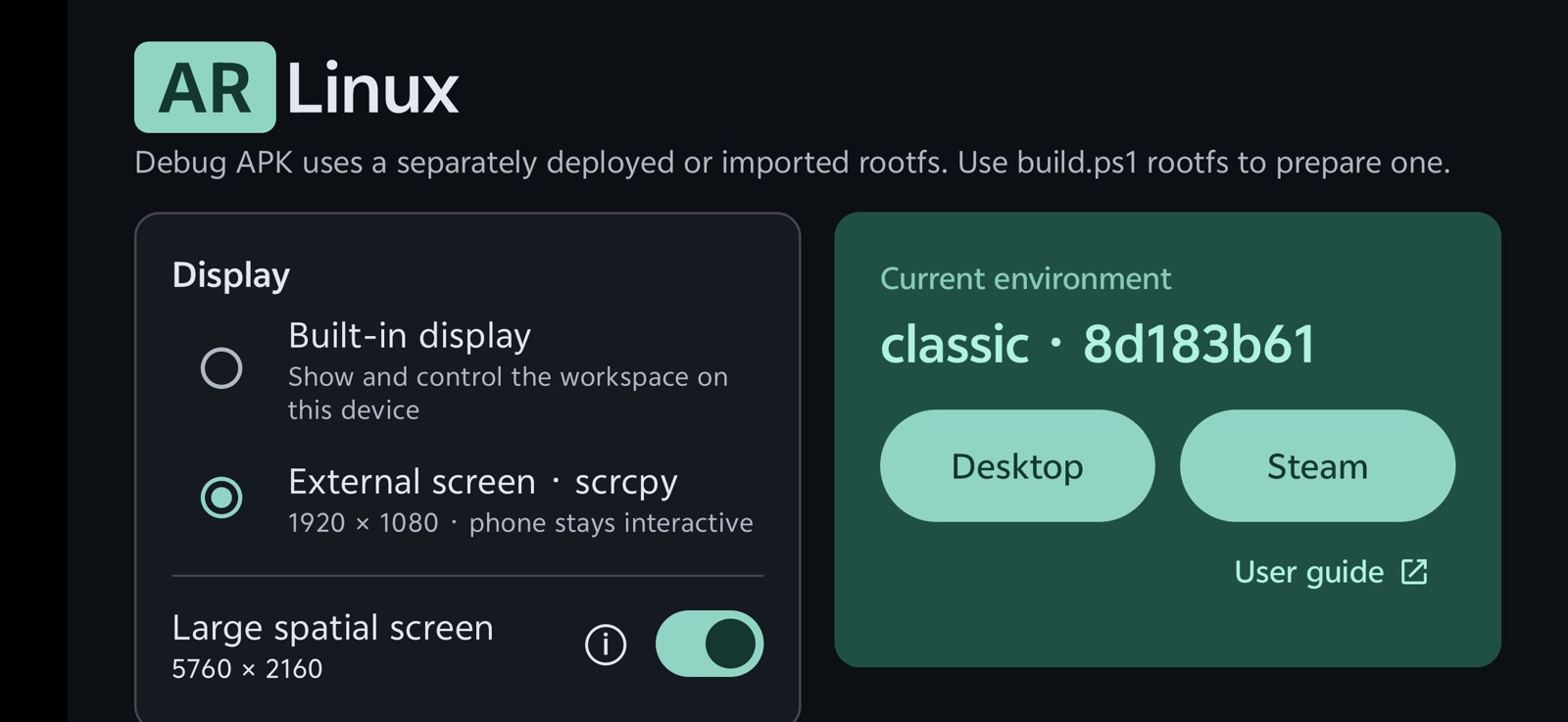
Display: where the desktop is shown. Built-in display is the phone; a connected monitor or AR glasses appear here too (Android 12+).
Manage environments: all your workspaces. Select one, then Start desktop. Each keeps its own apps and files. Below the list: Add Classic, Import (a distribution ZIP, an APK or an environment backup) and Run settings.
⋮: Rename, Reinstall (refreshes the Linux system from this APK and keeps your home folder), Export a private backup, or Delete the workspace and everything in it.
The start screen works in portrait and landscape. Back up important files before you delete a workspace or uninstall the app.
Set up a spatial screen — choose Classic
Use Classic for a spatial desktop. Its freely positioned, resizable windows suit a large workspace. Yibu’s main area and three side slots suit the phone screen. Add Classic on the start screen if you do not already have it, then select that environment.
1234
ADB capture from a vivo X300, with a scrcpy virtual external display and ARLinux’s simulated glasses. This shows the controls, not an optical recording through AR glasses.
External display: return to the start screen before changing outputs. Connect supported AR glasses and select their display.
Large spatial screen: enable it for a 3DoF workspace that stays anchored in orientation as you turn your head. This option appears for a supported glasses output; it does not track movement around the room. Leave it off for an ordinary external screen.
ⓘ: read about the spatial screen and change the workspace resolution. The default is 5760 × 2160; this is the virtual workspace size, not the glasses’ physical resolution.
Classic selected: check the current environment, then tap Desktop. The phone remains your controller.
2 · THE YIBU DESKTOP
One main app, three live side slots
123456
789101112
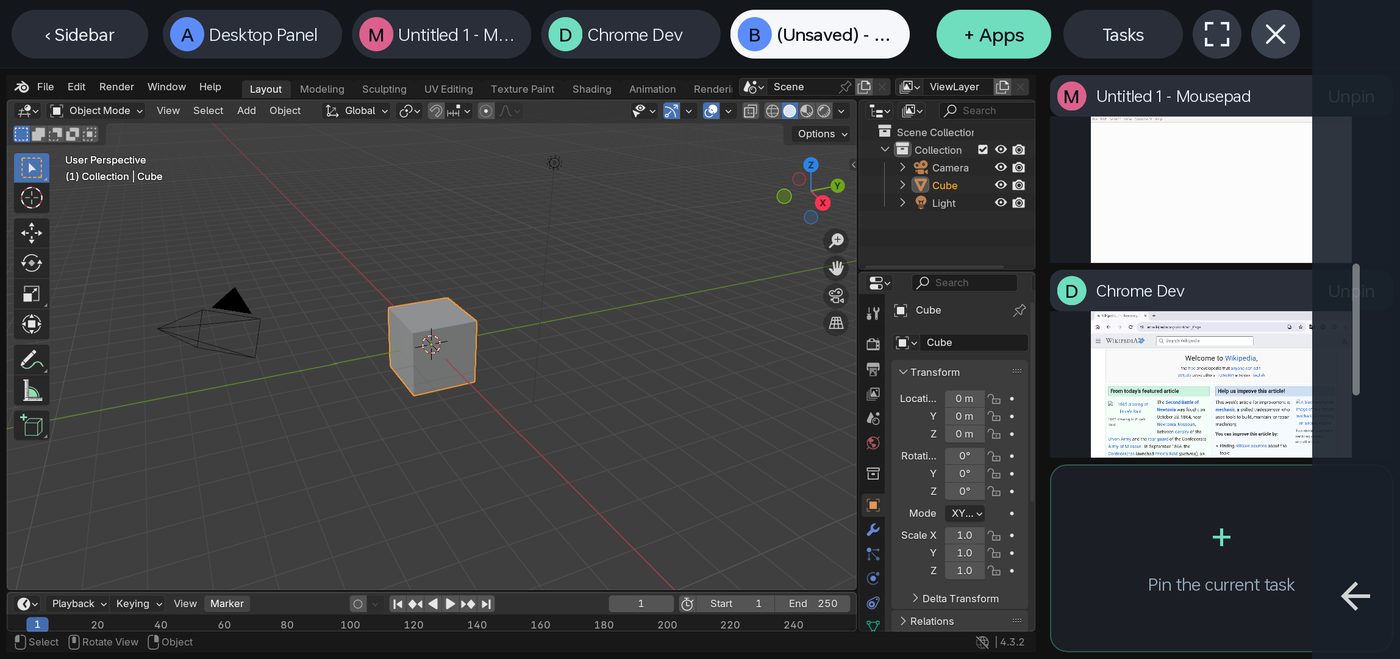
Sidebar: moves the side slots to the left or right.
Task chips: every running app, including the desktop panel. The highlighted one is in the main area; tap another to bring it there.
+ Apps: opens the desktop panel with the app list. Double-tapping the edge bar does the same.
Tasks: the full list of running apps when the chips don’t fit.
Full screen: gives the main app the whole screen.
×: asks the main app to close, like a window’s close button. Apps can ask you to save first; nothing is force-killed.
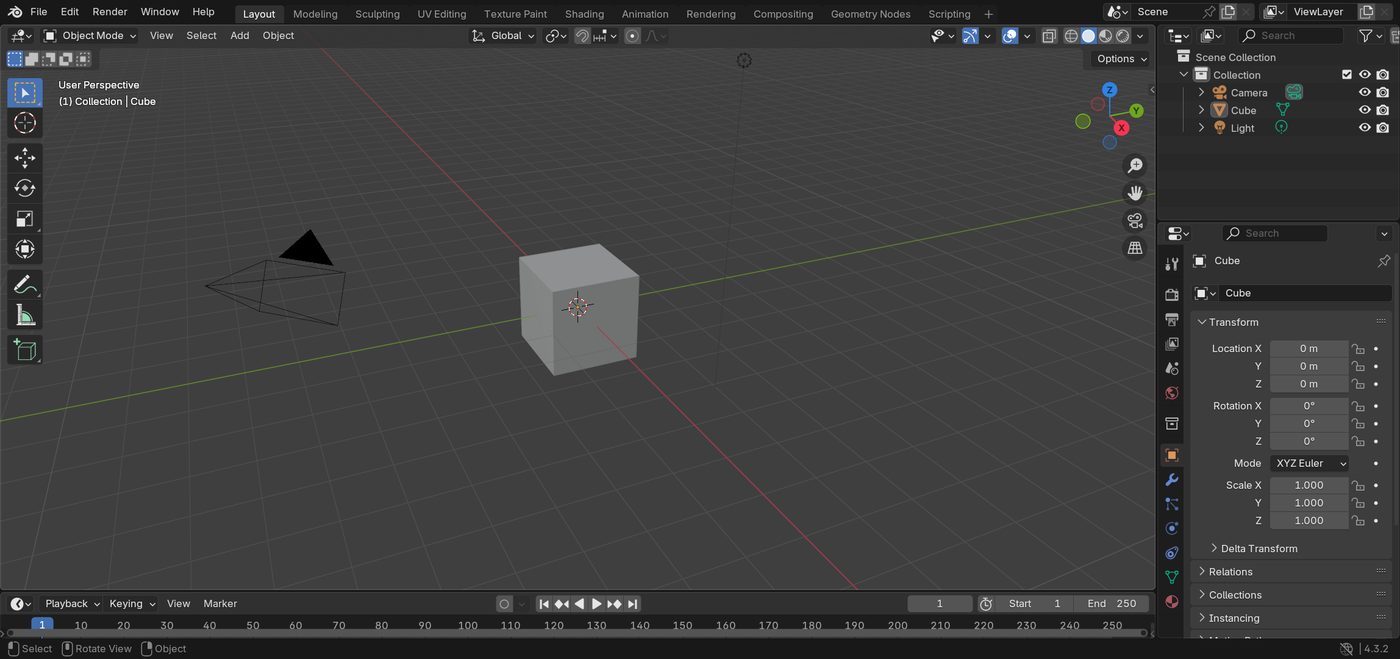
Main area: the app you are working in. Here, Blender.
Pinned slot: a live, scaled-down app. It keeps running and updating; tap it to swap it into the main area.
Unpin: takes the app out of the slot. It keeps running in the task chips.
Empty slot: “Pin the current task”. Tap it to pin the main app here.
Edge bar: tap for the keyboard, double-tap for Apps, hold to open your selected AI assistant, OpenCode or Grok Bot. In landscape, slide along it to scroll.
Back arrow: tap to go back in the app (Esc in Linux and Windows apps); hold to switch touch mode.
A typical layout: your document in the main area, OpenCode and a reference pinned at the side. Tap the reference when you need it, tap the document to go back. Android apps (Chrome here) sit in the same slots as Linux and Windows apps.
3 · DESKTOP PANEL
Apps, Settings and Tasks in one panel
12345
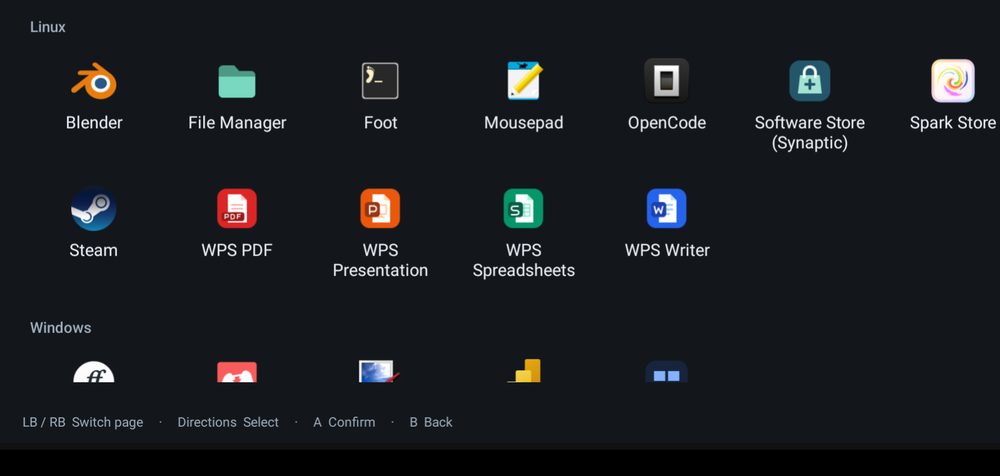
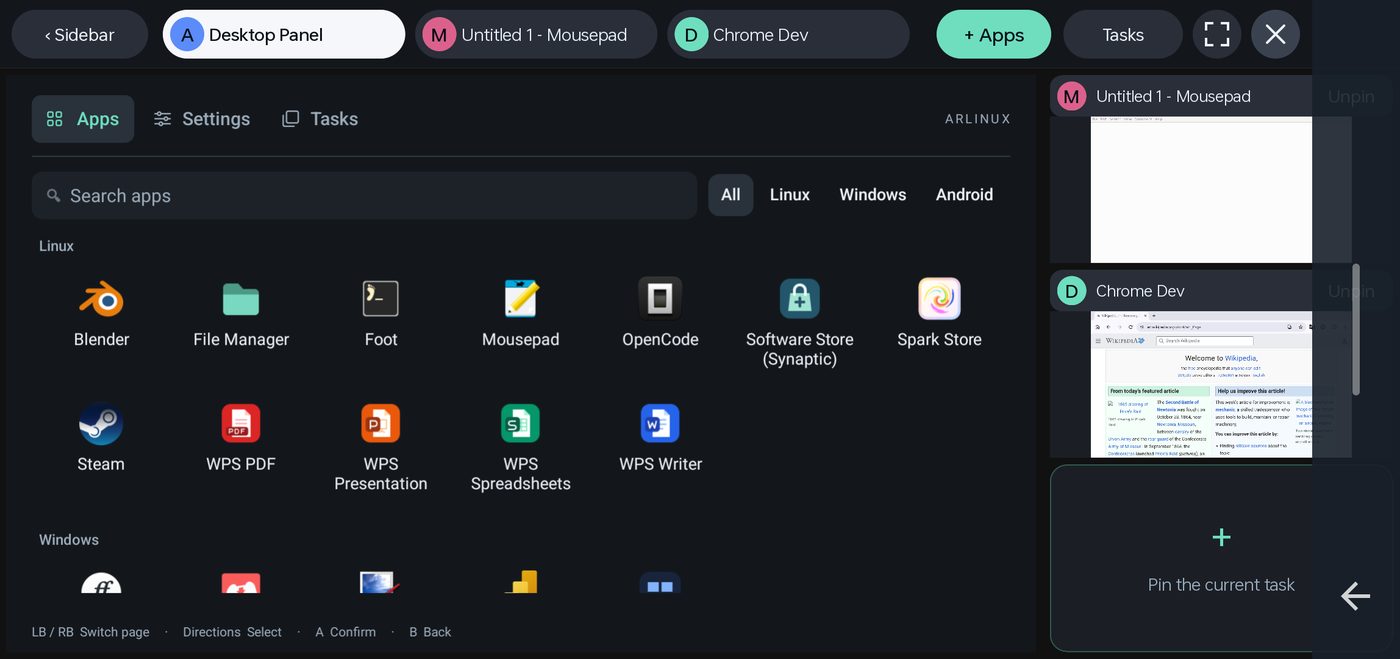
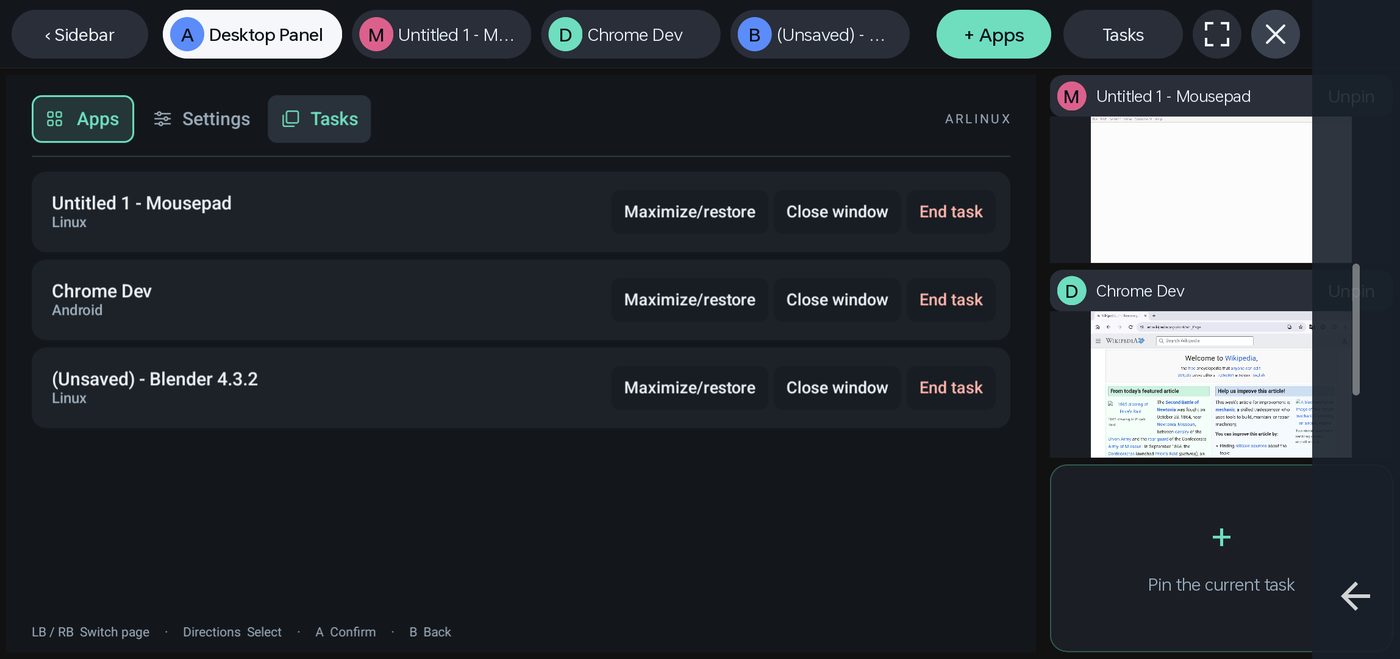
Apps · Settings · Tasks: the three tabs of the panel.
Search: start typing a name. The keyboard opens from the edge bar.
All · Linux · Windows · Android: filter the list. Android apps are the ones installed on your phone; Windows apps such as Paint.NET install on first tap.
Tap an app to open it in the main area. Install more Linux apps with apt, the software store, or by asking OpenCode.
Controller hints: with a gamepad, LB/RB switch tabs, the D-pad selects, A confirms and B goes back.
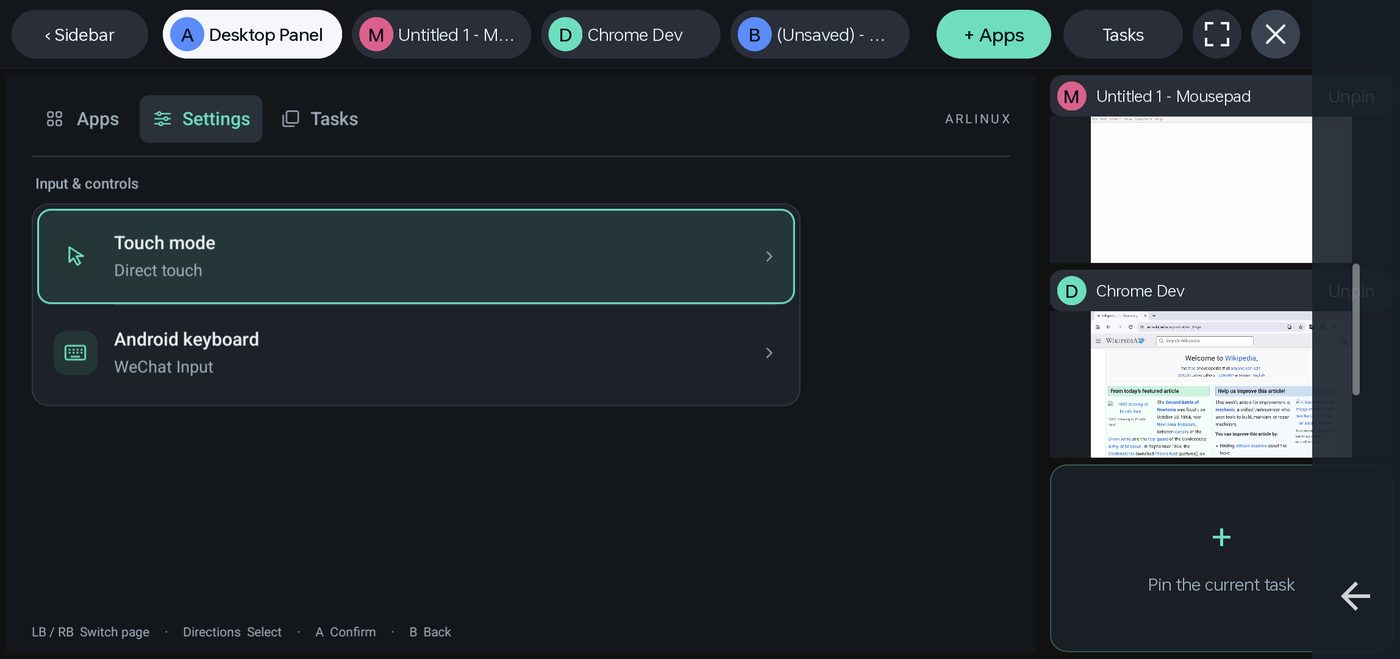
Settings: choose the touch mode and the Android keyboard (Gboard, WeChat Input or Doubao Input). They float in landscape and dock in portrait.
Tasks: every running app with its kind. Maximize/Restore, Close window (the app may ask to save) or End task for an app that stopped responding.
4 · CONTROLS
Four touch modes, one long press apart
Touchscreen
Tap to click, swipe to scroll. Hold, then move to drag or select text.
Touchpad
Slide anywhere to move one pointer, tap to click. Two fingers scroll or right-click.
On-screen gamepad
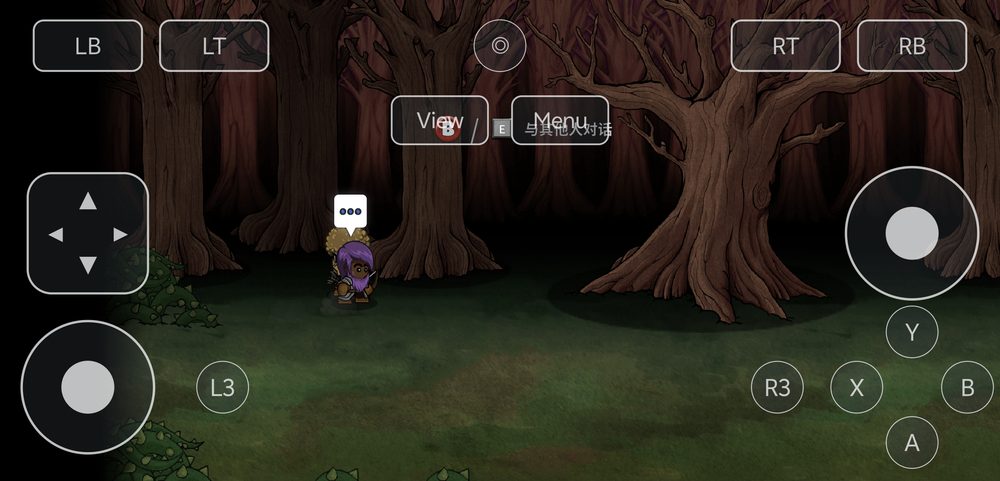
Two sticks, D-pad, ABXY, shoulders and triggers. Games see an Xbox controller.
Shooter
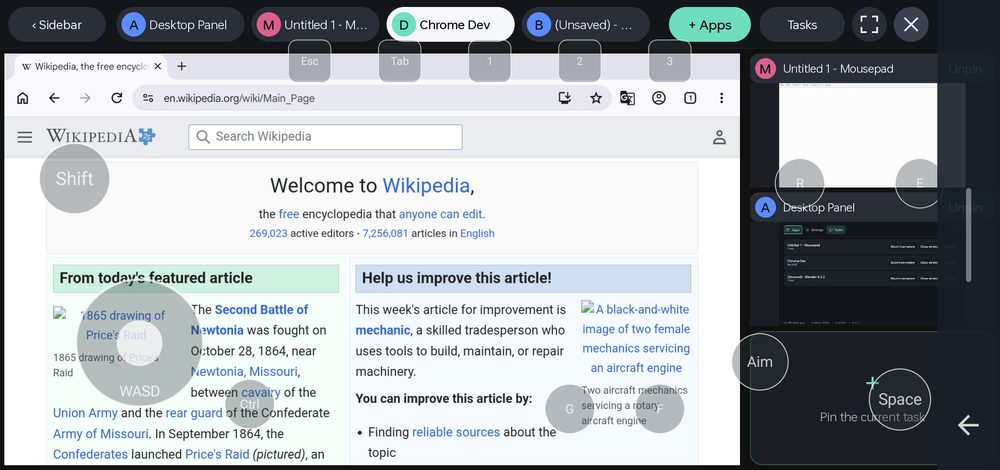
The left stick is WASD. Tap the open area to fire, drag to look; hold Aim for the right mouse button.
Hold the back arrow at the bottom right to go to the next mode: touchpad, touchscreen, gamepad, shooter. The mode is also in the panel’s Settings.
Hide and show the controls
Outside full screen the controls start visible. Swipe right along them to hide them; press Android Back to show them again. Showing the controls also leaves Yibu full screen.
Display controls: tap, double-tap and long-press
Choose the external display on the start screen. Hold the phone upright and it becomes a remote: point by moving the phone, use the touch area, and type on the docked keyboard.
123
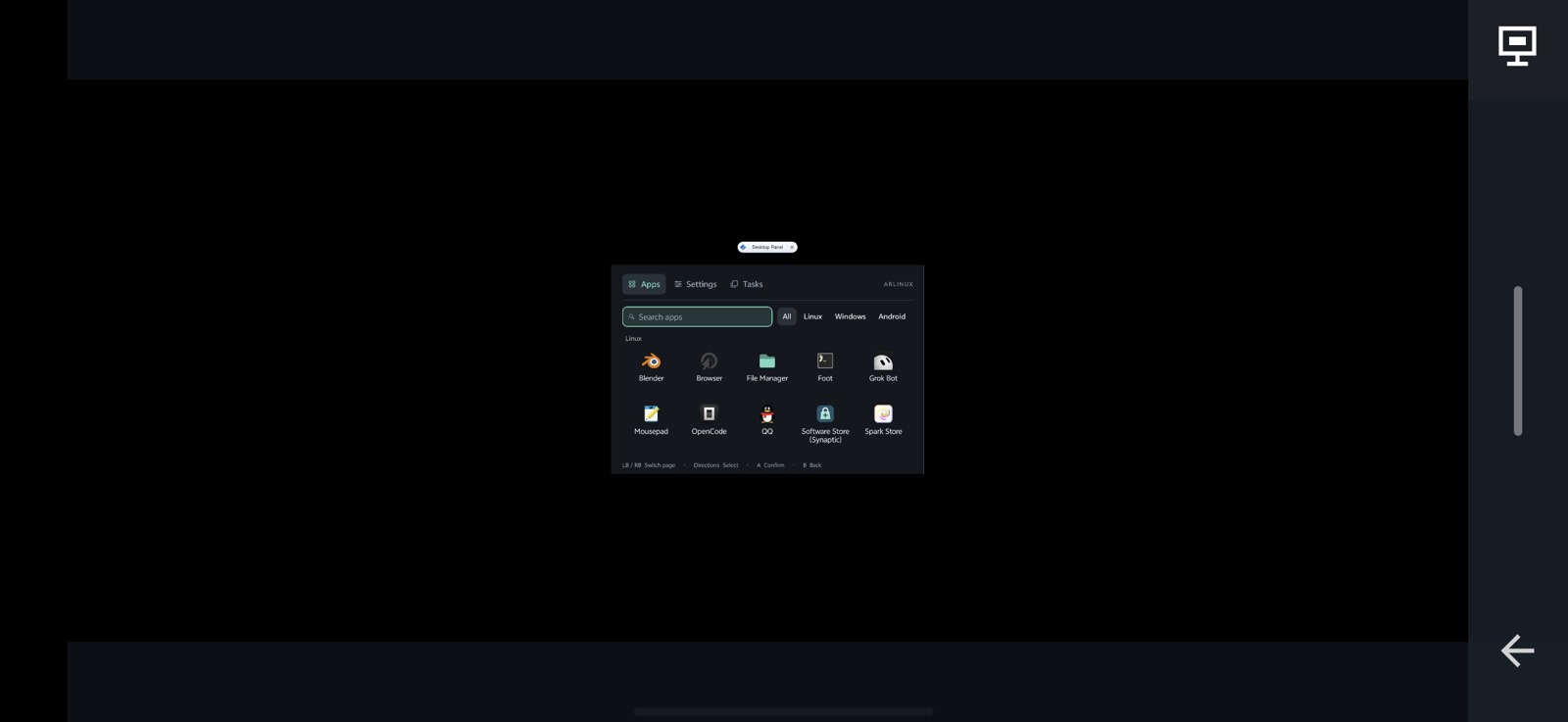
Phone view while the Classic spatial desktop is sent to the external display. The desktop preview is scaled down to fit the phone.
Display controls (monitor icon): at the top right of the phone screen, only when an external display is connected. Its three gestures are listed below.
Edge bar: tap for the keyboard, double-tap for Apps, long-press for your selected AI assistant. In landscape, slide vertically to scroll; two-finger scrolling remains available.
Back: tap to go back in the current app; long-press to switch touch mode.
Three gestures on the same Display controls button
Gesture
What it does
Tap
Recenter the pointer and the spatial screen.
Double-tap
Black out the phone screen. Double-tap the black screen to restore the controls.
Long-press
Toggle the small desktop preview on the phone.
5 · MORE
Full screen and leaving
Full screen: the main app fills the screen and the controls hide. Press Android Back to bring the controls and the Yibu layout back.
Leaving the desktop
With the controls visible, press Android Back twice to return to the start screen. Your apps and files stay in the workspace for next time.
 123456
 1234
 789101112
 12345
 123